Day 20 - ULTIMATE DOCKER CHEAT SHEET
Introduction :
Docker is a powerful platform that enables developers to automate the deployment, scaling, and management of applications within isolated environments called containers.
These containers bundle an application and all its dependencies, including libraries, configurations, and runtime environments, into a single package.
This approach ensures consistency across different development and production environments, making it easier to develop, test, and deploy software across various systems.
At its core, Docker utilizes containerization technology, which allows you to run applications in isolated, lightweight, and portable containers.
These containers share the host system's operating system kernel, but each container is isolated from others, providing a level of security and resource segregation.
This blog provides a list of the most common Docker commands cheat sheet.
List of Docker Commands
Docker Container Management Commands
This section features the essential commands related to the lifecycle of Docker containers. We will learn how to create, manage, and remove containers from your Docker system using the below commands.
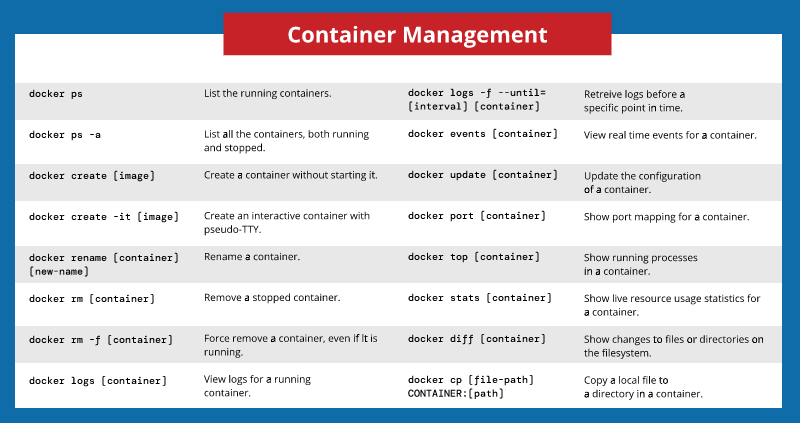
See the containers currently running on the system:
docker ps
See all the containers, both running and non-running:
docker ps -a
Create a container (without starting it):
docker create [image]
Create an interactive container :
docker create -it [image]
Rename an existing container:
docker rename [container] [new-name]
Delete a container (if it is not running):
docker rm [container]
Forcefully remove a container, even if it is running:
docker rm -f [container]
View logs for a running container:
docker logs [container]
View real-time events for a container:
docker events [container]
Update the configuration of one or more containers:
docker update [container]
View port mapping for a container:
docker port [container]
Show running processes in a container:
docker top [container]
View live resource usage statistics for a container:
docker stats [container]
Show changes to files or directories on the filesystem:
docker diff [container]
Copy a local file to a directory in a container:
docker cp [file-path] CONTAINER:[path]
Running a Container
The following commands show you how to start & stop processes in a container and how to manage container execution.
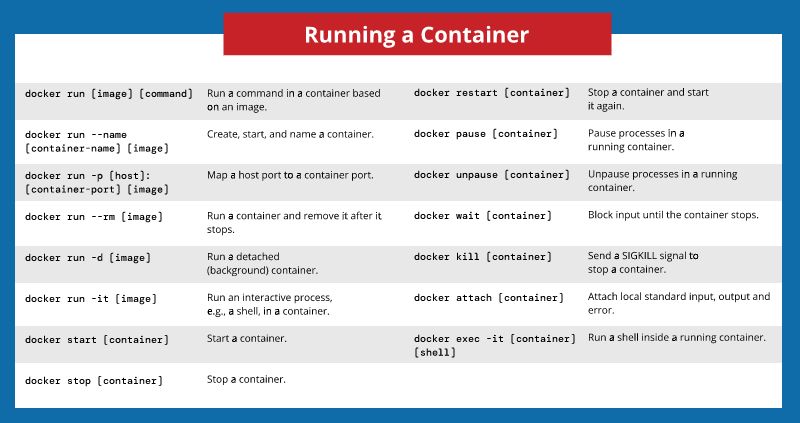
Run a command in a container based on an image:
docker run [image] [command]
Create, start, and provide a custom name for the container:
docker run --name [container-name] [image]
Establish a connection with a container by mapping a host port to a container port:
docker run -p [host-port]:[container-port] [image]
Run a container and remove it after it stops:
docker run --rm [image]
Run a detached (background) container:
docker run -d [image]
Start an interactive process, such as a shell, in a container:
docker run -it [image]
Start a container:
docker start [container]
Stop a running container:
docker stop [container]
Stop a running container and start it up again:
docker restart [container]
Pause processes in a running container:
docker pause [container]
Resume processes in a running container:
docker unpause [container]
Block a container until others stop (after which it prints their exit codes):
docker wait [container]
Kill a container by sending a SIGKILL to a running container:
docker kill [container]
Attach local standard input, output, and error streams to a running container:
docker attach [container]
Run a shell inside a running container:
docker exec -it [container] [shell]
Docker Image Commands
Below you will find all the necessary commands for working with Docker images.
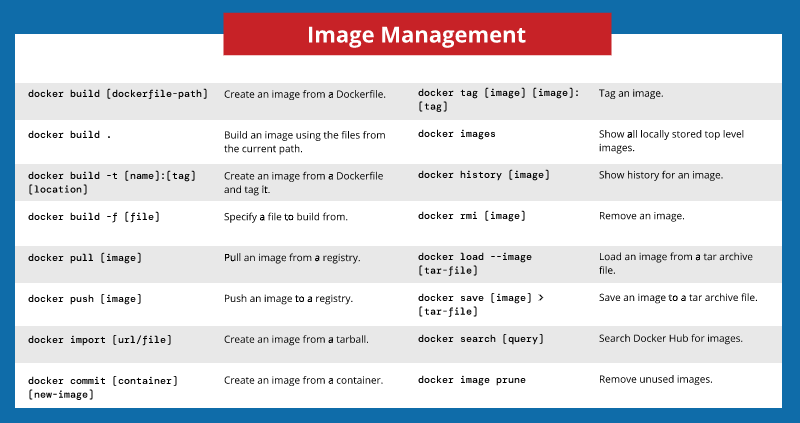
Create an image from a Dockerfile:
docker build [dockerfile-path]
Build an image from a Dockerfile located in the current directory:
docker build .
Create an image from a Dockerfile and tag it.
docker build -t [name]:[tag] [dockerfile-path]
Specify a file to build from:
docker build -f [file-path]
Pull an image from a registry:
docker pull [image]
Push an image to a registry:
docker push [image]
Create an image from a tarball:
docker import [url/file]
Create an image from a container:
docker commit [container] [new-image]
Tag an image:
docker tag [image] [image]:[tag]
Show all locally stored top-level images:
docker images
Show history for an image:
docker history [image]
Remove an image:
docker rmi [image]
Load an image from a tar archive or stdin:
docker load --image [tar-file]
Save an image to a tar archive file:
docker save [image] > [tar-file]
Remove unused images:
docker image prune
Networking
One of the most valuable features of Docker software is the ability to connect containers to each other and to other non-Docker workloads. This section covers network-related commands.
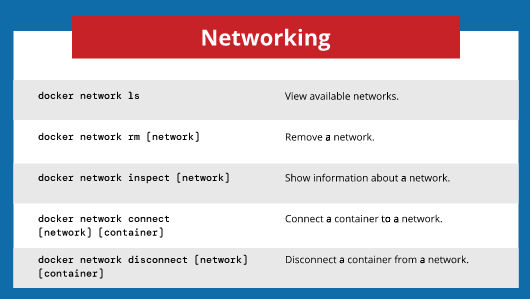
List available networks:
docker network ls
Remove one or more networks:
docker network rm [network]
Show information on one or more networks:
docker network inspect [network]
Connect a container to a network:
docker network connect [network] [container]
Disconnect a container from a network:
docker network disconnect [network] [container]
Docker General Management Commands
Once you set up your containers, you will need to know how to get all the important information for managing them.
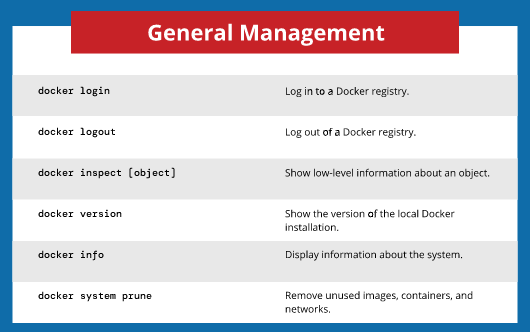
Log in to a Docker registry:
docker login
Log out of a Docker registry:
docker logout
List low-level information on Docker objects:
docker inspect [object]
Show the version of the local Docker installation:
docker version
Display information about the system:
docker info
Remove unused images, containers, and networks:
docker system prune
Conclusion :
This list of commonly used Docker commands should help you become more familiar with them. The cheat sheet will be helpful when you want to create and manage containers, images, and networks.
I hope you find the blog post helpful! If you do, don't forget to like 👍, comment 💬, and share 📢 it with your friends and colleagues.